
Frequently Asked Questions
Find answers to common questions about AuthMonster, two-factor authentication, and managing your tokens.
Getting Started
What is two-factor authentication (2FA)?
Two-factor authentication (2FA) adds an extra layer of security to your online accounts.
Instead of relying on just a password, 2FA requires two things:
- Something you know (like your password)
- Something you have (like a one-time code generated by an authenticator app)
Even if someone gets your password, they still can't log in without that second factor. This dramatically reduces the risk of account takeovers from phishing, data breaches, or reused passwords.
In short: passwords alone aren't enough anymore. 2FA helps keep your accounts safe.
What is an authenticator app?
An authenticator app is a security app that generates one-time codes you use to log into your accounts.
Instead of receiving a code by text message or email, the app generates codes directly on your device. These codes refresh automatically every few seconds and work even when you're offline.
Authenticator apps are more secure than SMS or email because they aren't vulnerable to things like SIM swapping, email compromise, or intercepted messages.
AuthMonster is an authenticator app designed to make this process simple, reliable, and low-stress.
What is a token?
A token is a secure entry in AuthMonster that represents one of your protected accounts.
Each token generates a 6-digit code that you enter when logging in to a website or app that uses two-factor authentication. The code changes automatically every 30 seconds and can only be used once.
For example, if you're signing in to your email account, AuthMonster might generate a code like 483 921. You enter that code after your password to complete the login.
Tokens do not store your password and can't be reused. They exist only to generate short-lived codes that help keep your account secure.
Why should I use an authenticator app instead of SMS or email codes?
Authenticator apps are more secure and more reliable than SMS or email codes.
Text messages and emails can be intercepted, delayed, or compromised through things like SIM swapping, account takeovers, or poor connectivity. If someone gains access to your phone number or email, they may be able to receive your login codes.
Authenticator apps generate codes directly on your device. The codes never travel over the network and work even when you don't have cell service or internet access.
In short, authenticator apps reduce common attack paths and remove several points of failure, making them a safer choice for protecting your accounts.
Using AuthMonster
How do I add a new account to AuthMonster?
You can add a new account to AuthMonster in two ways.
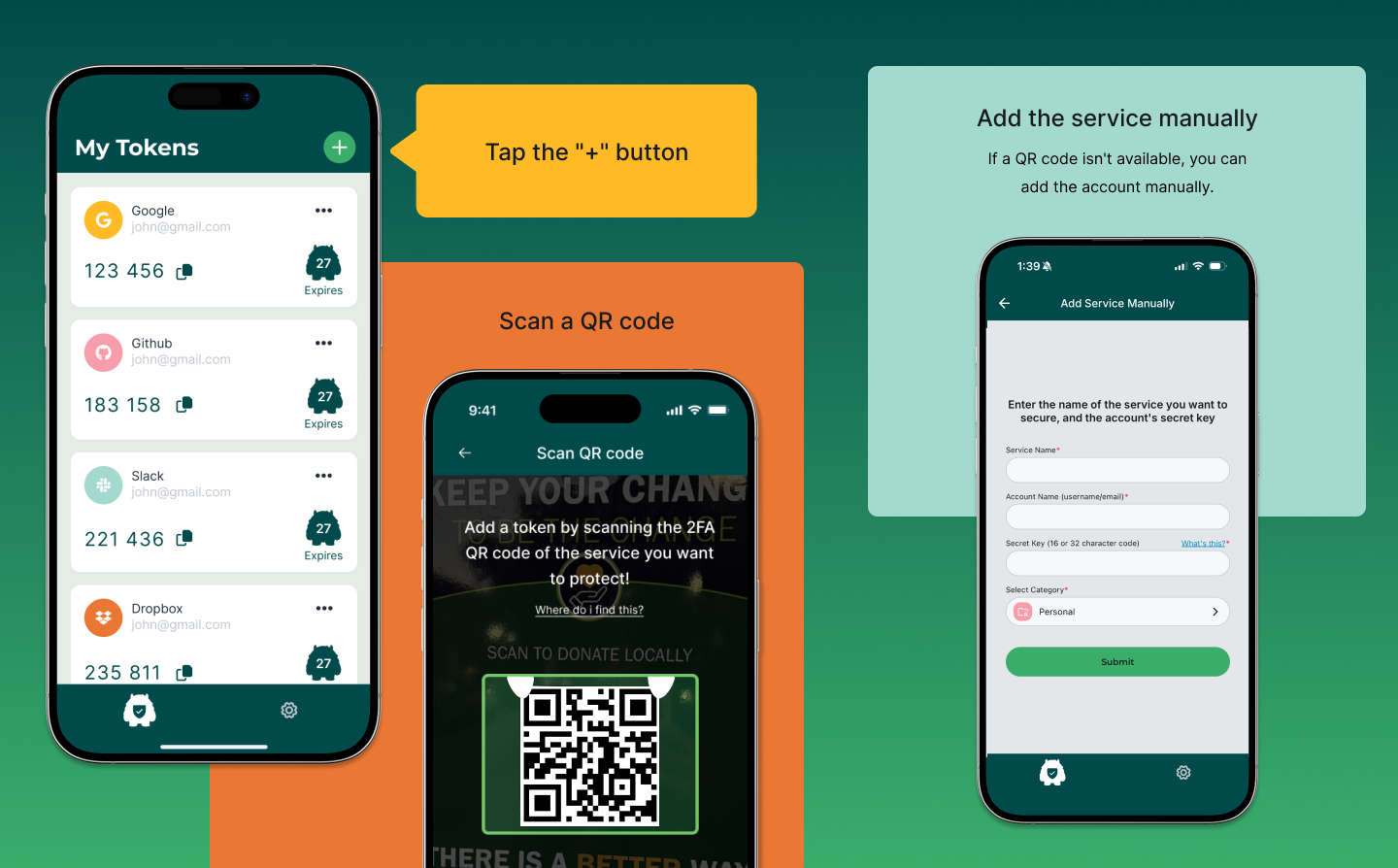
From the My Tokens screen, tap the "+" button. You'll then see two options:
Scan a QR code
Most services provide a QR code when you enable two-factor authentication. Scanning that QR code will automatically add the account and token to AuthMonster. This is the fastest and most common method.
Add the service manually
If a QR code isn't available, you can add the account manually. You'll be prompted to enter:
- The service name
- Your account name (such as a username or email)
- A secret key (a 16- or 32-character code provided by the service)
- A category to help organize your tokens
Both methods create the same result: a token that generates 6-digit codes for that account.
Where do I find the QR code or secret key?
You'll find the QR code or secret key when you enable two-factor authentication on the service you're securing.
Most services show this during setup, typically in their Security, Account Settings, or Two-Factor Authentication section. When you turn on 2FA, the service will usually display:
- A QR code you can scan with AuthMonster, and/or
- A secret key (sometimes called a setup key or backup key) made up of letters and numbers
If you see both, using the QR code is usually the easiest option. The secret key is provided as an alternative in case you can't scan the code.
Once you finish setup, many services won't show the QR code or secret key again. It's important to add the account to AuthMonster during this step.
Why do my codes change every 30 seconds?
Your authentication codes change every 30 seconds to keep your accounts secure.
Each code is designed to be valid for only a short window of time. This makes it extremely difficult for anyone else to reuse or guess a code, even if they see it briefly.
AuthMonster and the service you're logging into stay in sync, so both sides know which code is valid at any given moment. When the time window expires, a new code is generated automatically.
This behavior is normal and expected. If your codes weren't changing regularly, that would be a security risk.
Can I use AuthMonster without an internet connection?
Yes. AuthMonster works without an internet connection.
Once a token is added to the app, AuthMonster generates 6-digit authentication codes directly on your device. These codes do not require cellular service or Wi-Fi to work.
This means you can sign in to your accounts even if you're offline, traveling, or in an area with poor connectivity.
Internet access is only required when setting up new accounts or using features that involve syncing or backups — not for generating codes.
Can I organize or group my tokens?
Yes. AuthMonster lets you organize your tokens into categories so they're easier to find and manage.
You can group tokens into the following categories:
- Pinned
- Work
- Personal
- Money
- Social
- Health
- Crypto
When you add a new token, you choose a category right away, and you can pin important tokens so they always appear at the top of your list.
Organizing tokens helps reduce clutter, prevents mistakes, and makes it faster to find the right code — especially if you manage many accounts.
What happens if I enter the wrong code?
Nothing bad happens. AuthMonster is designed to prevent mistakes from becoming problems.
If you try to scan or enter a code that isn't valid, AuthMonster will let you know and won't add the token. No accounts are affected, and nothing is saved until the information is correct.
If you scan a different type of QR code that AuthMonster recognizes — such as an import or transfer code — you'll be notified and guided to the correct flow for that code instead.
In all cases, AuthMonster validates inputs before creating a token, so errors are caught early and safely.
Devices, Backup & Recovery
Can I back up my tokens?
Yes. AuthMonster gives you two ways to back up your tokens: locally and to the cloud.
Local backup
You can save an encrypted backup of your tokens directly on your device. When creating a local backup, you have the option to protect it with a password for added security.
Cloud backup
You can also back up your tokens securely to the cloud. Cloud backups can be encrypted with a password as well, so your tokens remain protected even if someone gains access to your cloud account.
In both cases, your tokens are encrypted, and you control whether a password is required. Backup settings can be managed at any time from the app's Settings screen.
What happens if I forget my backup password?
If you password-protect your backup and forget the password, the backup cannot be recovered.
AuthMonster encrypts password-protected backups in a way that even we can't unlock them without the password. This is intentional and ensures that only you can access your tokens.
If you're concerned about forgetting the password, you can choose to skip password protection when creating a backup. This makes recovery easier, but it is less secure, since anyone with access to the backup location could potentially read it.
For the strongest security, use a password you can reliably remember or store it in a trusted password manager. This is the tradeoff between convenience and protection.
What happens to my tokens if I uninstall AuthMonster or lose my phone?
As long as you have a backup, you can restore your tokens.
If you uninstall and reinstall AuthMonster on the same device, you can restore your tokens from either a local backup or a cloud backup during setup.
If you lose your phone or switch to a new one, you can restore your tokens using your cloud backup. After installing AuthMonster on the new device, choose Restore from Backup and follow the prompts.
If your backup is password-protected, you'll need the backup password to unlock it. If you don't have a backup, your tokens can't be recovered and will need to be re-added from each service.
This is why enabling backups — especially cloud backup — is strongly recommended.
Can I move AuthMonster to a new phone, and what should I do before replacing my phone?
Yes. You can move AuthMonster to a new phone by restoring your tokens from a backup.
Before upgrading or replacing your phone, make sure you have a recent backup, ideally a cloud backup, enabled in Settings. This ensures your tokens can be restored on a new device.
When you install AuthMonster on your new phone, choose Restore from Backup during setup and follow the prompts. If your backup is password-protected, you'll need that password to complete the restore.
If you don't create a backup before switching phones, your tokens can't be transferred and will need to be re-added from each service.
Can I import tokens from another authenticator app?
Yes. AuthMonster lets you import tokens from several popular authenticator apps, so you don't have to start from scratch.
Supported apps
You can currently import tokens from:
- Google Authenticator
- LastPass
- Aegis
- 2FAS
- andOTP
How importing works
The exact steps depend on the app you're importing from, but AuthMonster supports four common import methods:
- Scan QR code — The other app generates a QR code, which you scan directly with AuthMonster.
- Upload QR code screenshot — If the QR code is on the same device, you can take a screenshot and upload it instead of scanning.
- Choose JSON file — Some apps let you export your tokens as an unencrypted JSON file, which you can upload to AuthMonster.
- Choose text file — Some apps export tokens as a plain text file, which AuthMonster can also import.
AuthMonster guides you through the correct import flow after you select the app you're importing from, so you don't need to guess which method to use.